For a long time a ScriptHooks script had a short life. You generated it, you read it over, maybe you tightened a line, and then you copied it out. That was the last the product saw of it. The words you actually had to say out loud, on camera, were on their own from there: pasted into a notes app, taped next to the lens, or memorized in takes.
Today the script follows you onto the shoot. The Teleprompter puts the thing you wrote in front of the lens and scrolls it at the speed you talk, while it records you. It is in the left sidebar under Create for every logged-in user, and there is a free public version at scripthooks.ai/prompter.
Your script, on screen, paced to you
Getting a script into the prompter takes one of three routes. Paste it. Upload a file (.txt, .md, .fountain, .pdf, or .docx, all parsed right in your browser). Or open any ScriptHooks script you have written with a single click. Section labels like [HOOK] are stripped automatically, so only the words you actually speak end up on screen. Everything stays on your device. Nothing uploads.
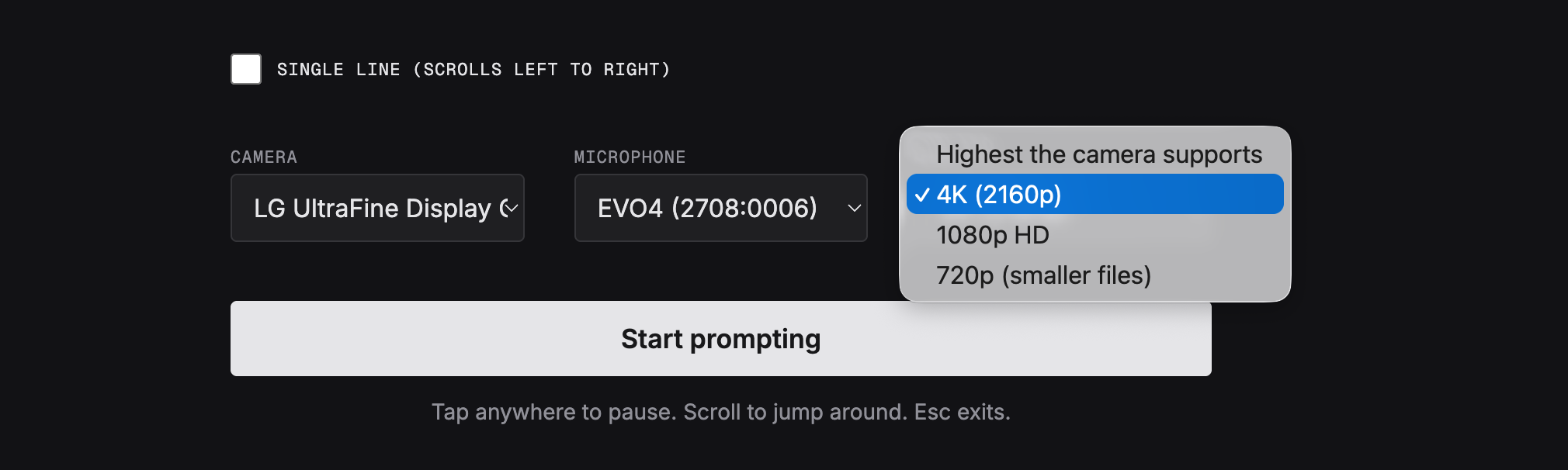
From the setup screen you set the pace and the text size, pick your camera, microphone, and recording quality, and press Start prompting.
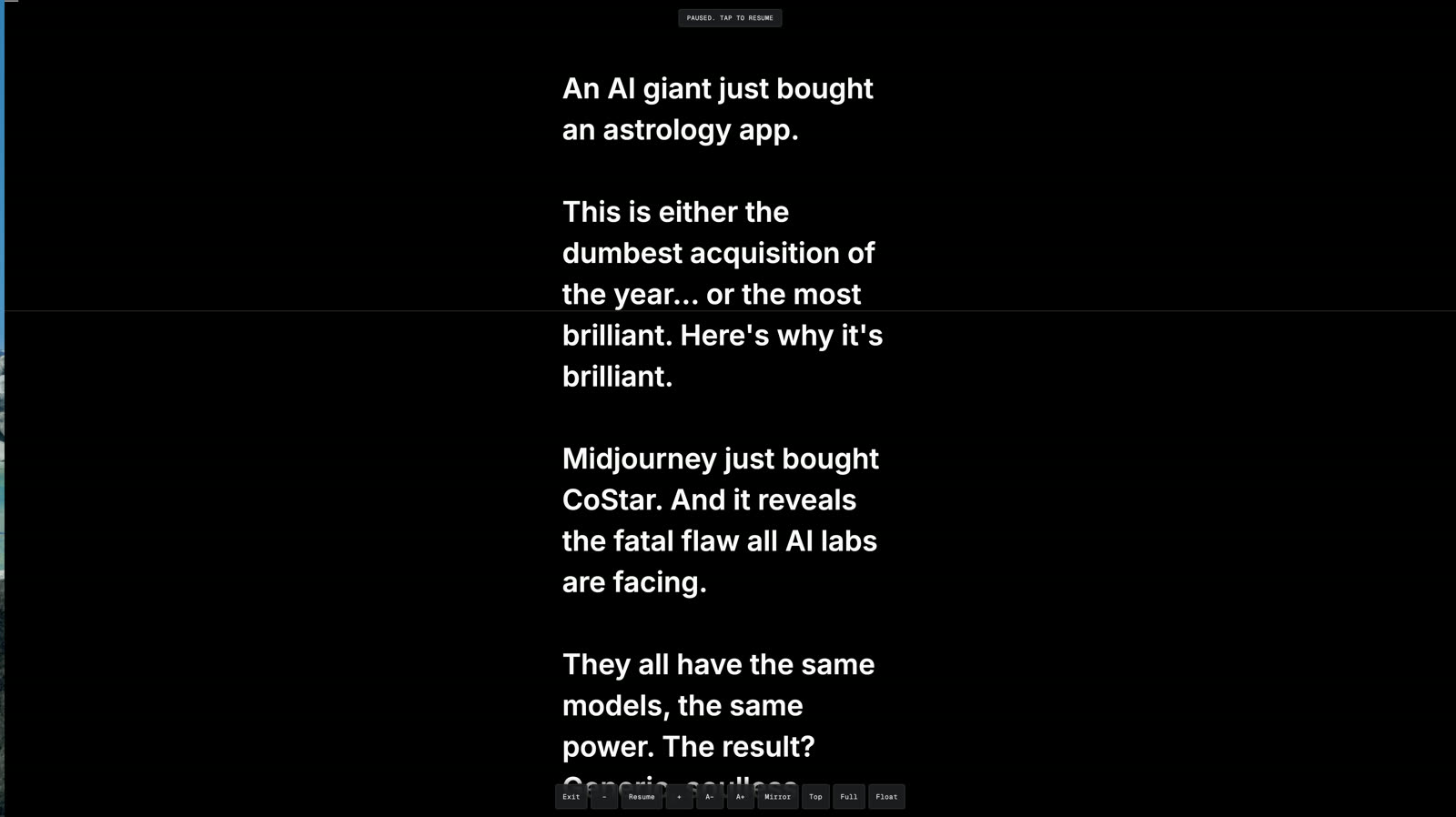
Reading is a smooth auto-scroll paced in words per minute, which means your runtime is predictable. The prompter shows you how long the read will take before you start. You can adjust the text size, and a fixed read line sits across the middle of the screen so your eyes always land in the same place. Tap the screen or hit Space to pause and resume, and scroll to jump anywhere in the script. A screen wake lock keeps your phone from sleeping in the middle of a take.
Record while you read
You do not have to run a separate camera app. The prompter can record you locally while you read. Before you start, you choose your camera, your microphone, and your quality: Highest the camera supports, 4K (2160p), 1080p HD, or 720p. The bitrate is matched to the resolution you pick, so HD and 4K actually look sharp instead of soft and blocky.
Nothing uploads. The take downloads straight to your device, and the end screen confirms the filename so you know exactly what you just captured. And when the script runs out, the text rolls fully off the top like film credits before the recording stops, so your last line is never clipped short.
Modes for every rig
How you read depends on your setup, so there are four ways to run the prompter:
- Mirror flips the text for beam-splitter teleprompter rigs, so it reads correctly through the glass.
- Single line scrolls one line at a time from left to right, so your eyes stay planted right beside the lens instead of sweeping down a page.
- Full screen hands the whole display over to your words.
- Float is a small always-on-top window you drag directly under your webcam, so you can prompt over Zoom, Riverside, or QuickTime while you record somewhere else. Float runs on Chrome desktop.
It lives on your phone
The phone is the primary surface here, not an afterthought. Most people shoot to camera with a phone, so the prompter is built to sit next to the lens: prop the phone up, start the read, and talk. Everything above (the pacing, the read line, the tap to pause, the wake lock, the recording) works the same on mobile.
One honest caveat. In-app browsers, the kind that open when you tap a link inside another app, often block camera access. If you want to record and the camera will not turn on, open scripthooks.ai directly in Safari or Chrome and it will work.
And it presents your decks
The same idea shows up in Story Decks. Open a deck and you will find a Prompter button in the toolbar, right next to Present and Export.
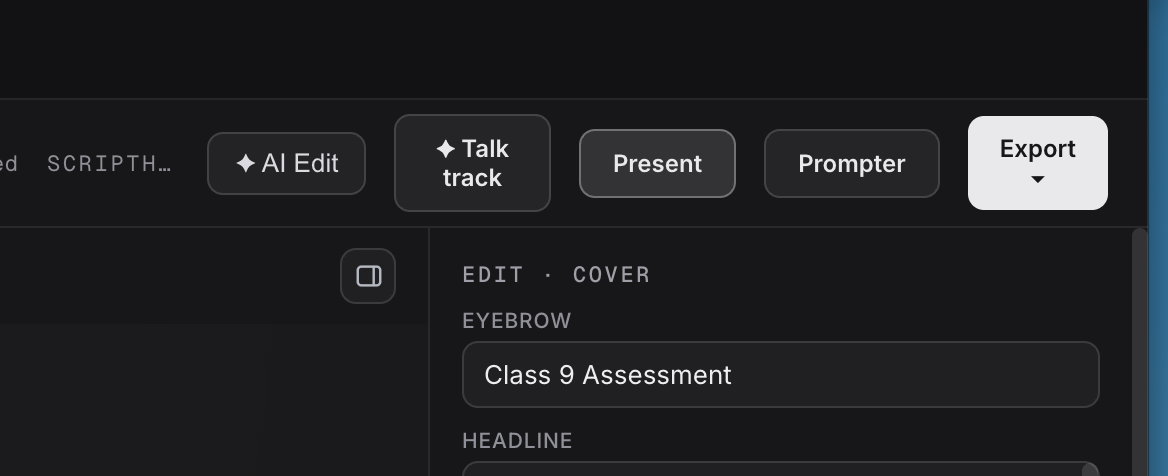
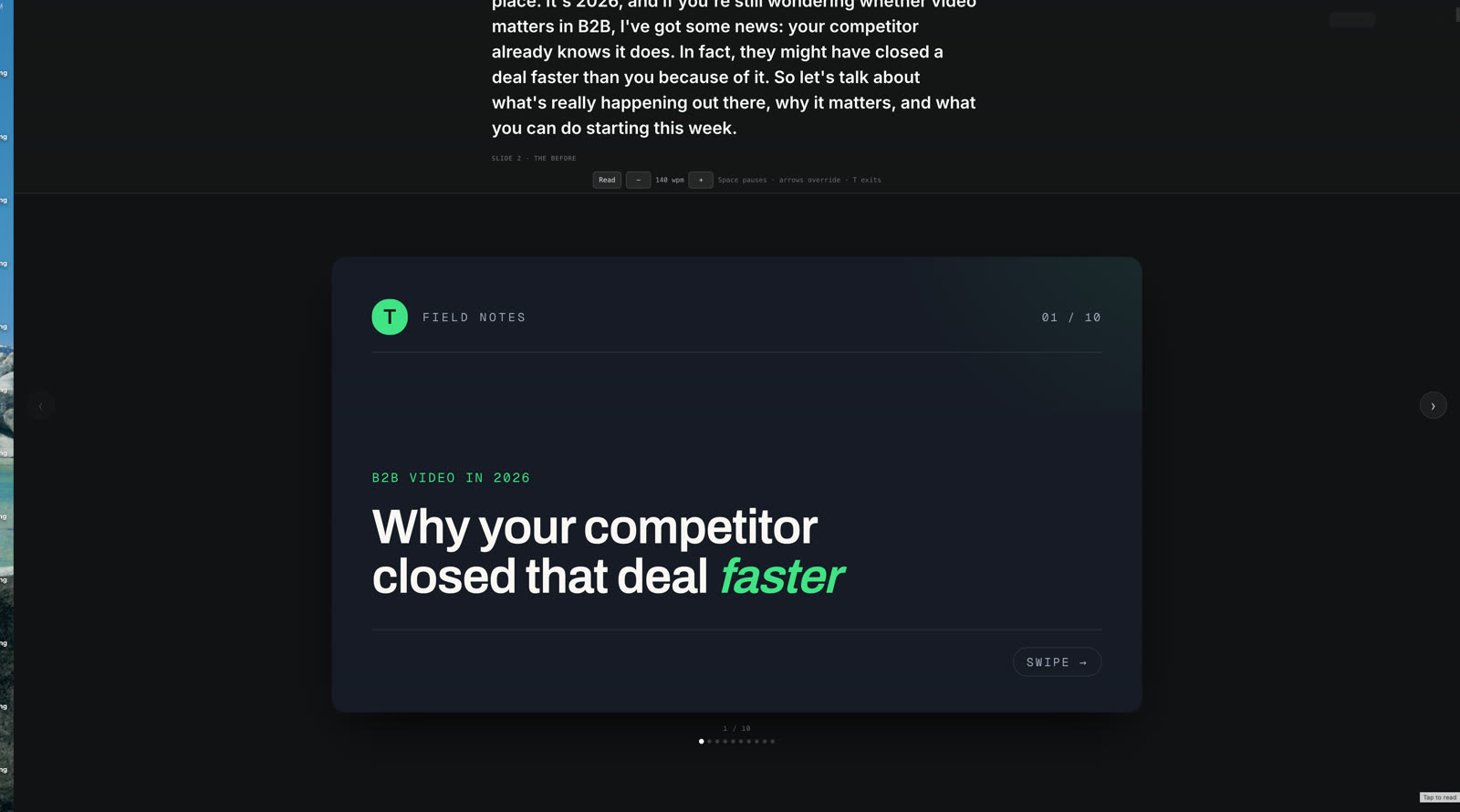
Prompter turns your slides' speaker notes into a scrolling talk-track ribbon in Present mode, and the deck advances itself slide by slide as you read. Arrow keys override the auto-advance whenever you want to jump, and Space pauses.
If a slide's speaker notes are empty, the Write talk track button will fill them in for you. It uses AI to write a presenter script into every slide's speaker notes. You pick a voice and tone, a length per slide, and whether you want timecodes.
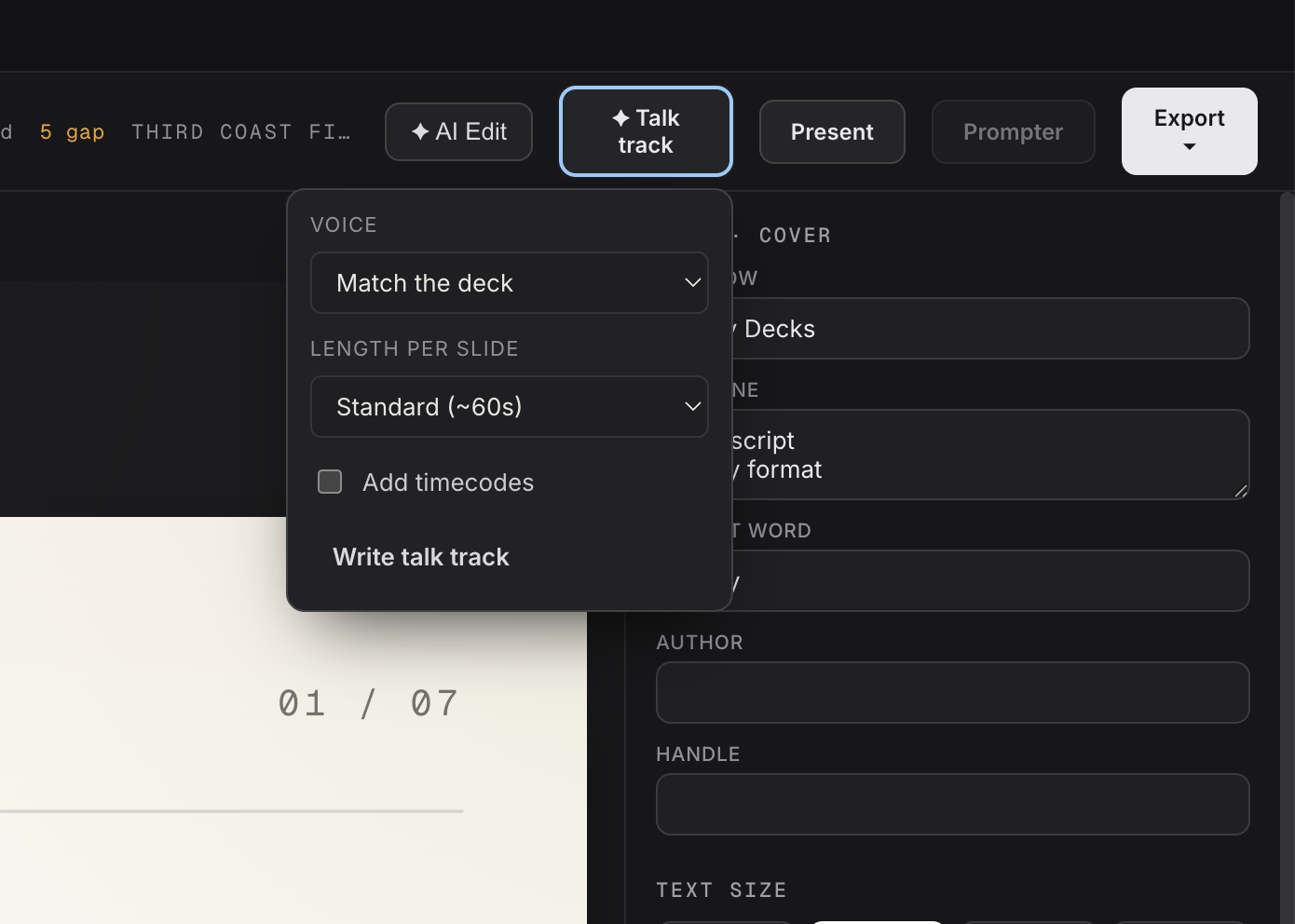
The draft lands in each slide's speaker notes, where you can read it over and edit any line before you present. It is a starting point you own, not a locked script.
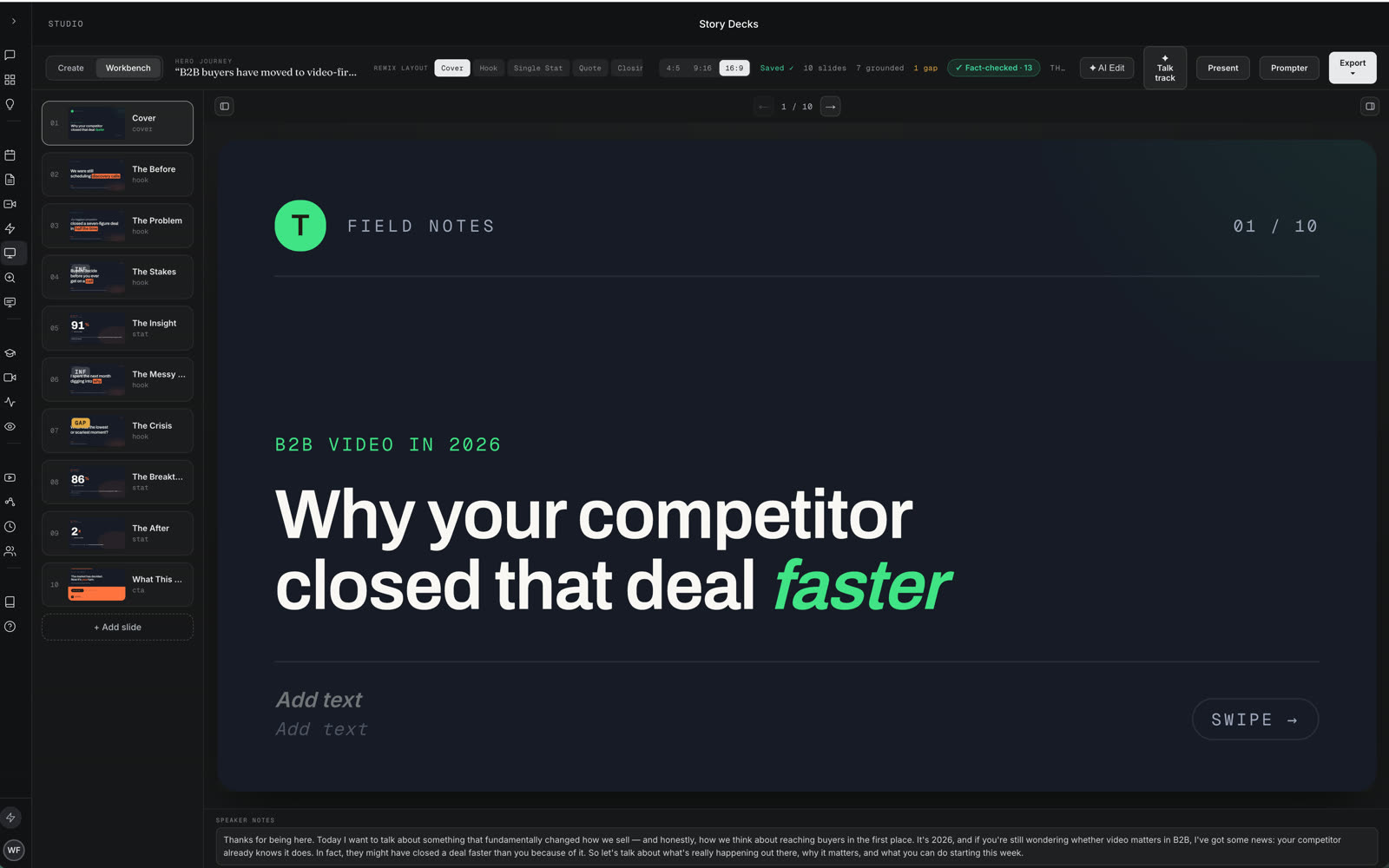
Then you present and just read. The ribbon scrolls across the top, the slide sits below it, and the deck moves itself along while you talk. Everything else drives itself.
Record the whole presentation
You can also record the presentation as you give it. A Record button sits in the corner of Present mode. Click it, choose the screen or window to share, and it captures your deck and the scrolling talk-track ribbon with your webcam composited into the corner, all as one video. That is the full webinar look: your slides fill the frame, you sit in the corner, and it saves a single file to your device the moment you stop. It runs on Chrome, Edge, and other desktop browsers that support screen capture, and like everything else here, nothing uploads.
The short version
Prompting is free. There are no credits on reading your script, on desktop or phone. Recording is local, so it costs nothing and the footage stays on your device, yours to keep the moment the take ends.
You will find it as Teleprompter in the left sidebar under Create, and at the free public page scripthooks.ai/prompter. Bring a script you already wrote, or paste one in, and read your next take instead of guessing at it.
Read your next take, do not guess at it
Open a script you already wrote, set the pace, and let the prompter scroll it while it records you. Free to prompt, and the footage never leaves your device.
Open the Teleprompter →New here? Start with ScriptHooks.
- Wes Fleming
ScriptHooks